Apple iPad
Add your calendar to Meeting Room 365 and use your Apple iPad as your meeting room display.
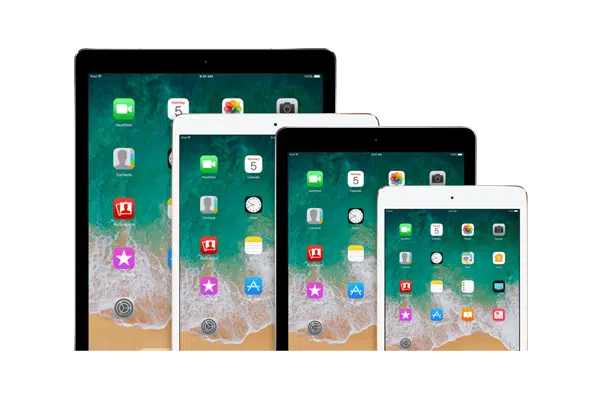
The premium default for room doors.
The Apple iPad is one of the most popular choices for meeting room displays. With its bright Retina display, reliable performance, and long-term software support, it provides a premium experience outside your conference rooms.
The Meeting Room 365 app for iOS delivers real-time calendar updates, room booking, and availability status with a polished, touch-friendly interface. iPads can be easily wall-mounted using a variety of commercial tablet enclosures and PoE-powered mounts for a clean, cable-free installation.
At a glance
- Platform
- iOS
- Category
- Tablets
- App
- App Store
- Best for
- Room displays
Where the iPad does well, and what to weigh.
Where it shines
- A Retina display that stays readable at an angle
- Years of iOS updates, so devices stay supported for longer
- Huge ecosystem of commercial wall mounts and PoE enclosures
- Guided Access locks it into a tamper-proof kiosk
Things to watch
- Higher upfront cost than equivalent Android tablets
- No native Ethernet; needs a USB-C or Lightning adapter
- No built-in LED status bar like purpose-built room panels
- Apple Business Manager recommended to manage at scale
One device, part of the connected workplace.
The same iPad and the same account can run more than one screen, and every screen reads from one calendar.
Room Displays
Mount it by the door as the live room sign: tap to book, check in, or release.
Create Your Account
Sign up for a free trial at admin.meetingroom365.com. Connect your Office 365, Exchange, or Google Workspace calendar.
Add Your Room
Add your meeting room calendar in the Meeting Room 365 admin portal. Configure display settings, themes, and branding to match your office.
Install the App
Download Meeting Room 365 from the Apple App Store on your iPad. Open the app and enter your display URL from the admin portal.
Enable Kiosk Mode & Mount
Enable Guided Access (Settings > Accessibility > Guided Access) to lock the iPad to the Meeting Room 365 app. Mount your iPad outside the meeting room.
Requirements & best practices.
Requirements
- iPad running iOS 15 or later
- Wi-Fi or Ethernet (via adapter) connection
- Meeting Room 365 account
- Office 365, Microsoft Exchange, or Google Workspace calendar
Tips & best practices
- Enable Guided Access to lock the iPad into kiosk mode and prevent users from exiting the app
- Use a powered wall mount or PoE adapter to keep the iPad charged continuously
- Set Auto-Lock to Never (Settings > Display & Brightness) to keep the display always on
- Consider using Apple Business Manager for managing multiple iPads across your office
Need detailed instructions?
Deeper guides live in the Support Center.
Other devices that fit the same job.
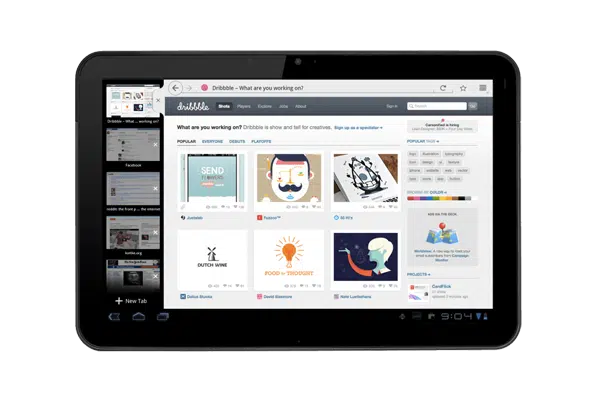 Android
Android Tablets
Affordable and widely available; pick any size to fit the door.
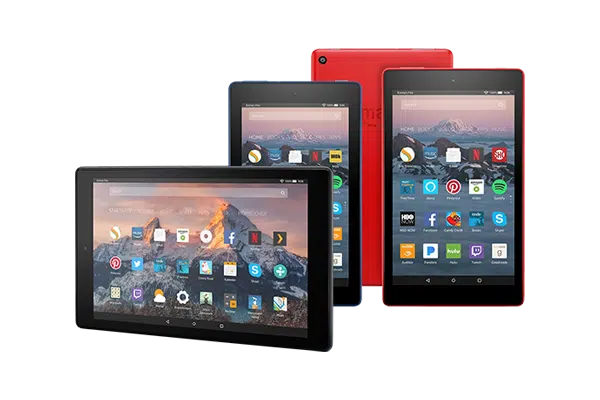 Fire OS
Amazon Fire Tablets
The budget workhorse when you are rolling out dozens of doors at once.
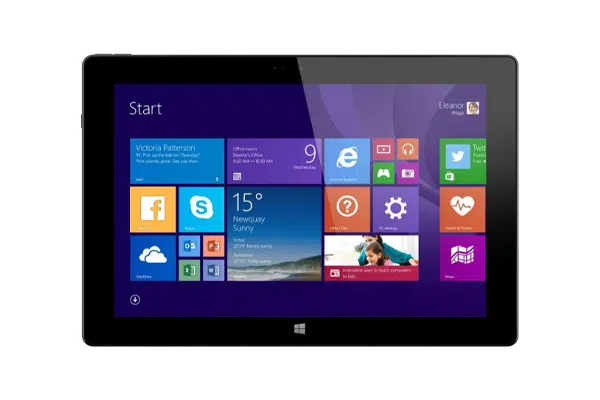 Windows
Windows Tablets
Surface-class tablets for fleets already standardized on Microsoft.
Start with the device on your desk.
Spin up a free trial, install the app on whatever you’ve got, and see your first room go live today. Add purpose-built panels whenever you’re ready.